How to Add Your Partner Number to the Starbucks App (Step‑by‑Step Guide)
Key Takeaways
Starbucks partners must first link their starbucks partner number to their Starbucks Rewards account on the Starbucks website before it will appear or function in the starbucks app. You cannot add it directly inside the app's settings.
On a computer, sign into starbucks.com → go to Account or Profile → find the partner info or "Add partner number" option → enter your 6–8 digit partner number and last name exactly as it appears on pay stubs → confirm.
On a phone, open starbucks.com in a browser, switch to desktop mode, and follow the same steps. Then add your Partner Card (16-digit number + security code) inside the starbucks app under payment methods.
Once the partner number is linked and you pay with a registered Partner Card in the app, the 30% partner discount automatically applies to eligible purchases at company-operated stores.
If your partner discount doesn't show up or your number won't verify, contact the partner contact center at 1‑888‑SBUX‑411 (7289‑411) for help.
This guide applies to the current Starbucks app experience in 2024–2026, but policies, URLs, and menu labels can change. Always confirm details on official Starbucks partner resources.
Introduction: Why Add Your Partner Number to the Starbucks App?
Your partner number is a unique 6–8 digit employee ID that Starbucks assigns to every partner. Linking it to your Starbucks Rewards account is how you unlock the partner discount (30% off eligible drinks, food items, and merchandise) and your weekly markout benefit when ordering through the app or paying at the register.
Here are the key terms you need to know before getting started:
Partner number (partner ID): Your short employee identifier, used across internal Starbucks systems like Partner Hub and payroll.
Partner Card: A physical or digital card with a 16-digit card number and PIN, used as a payment method in the app-similar to a Starbucks gift card.
Partner discount: The 30% savings on eligible items at company-operated Starbucks stores, plus your free weekly markout.
One thing that catches many partners off guard: you cannot add the partner number directly inside the mobile app. Adding a partner number to the starbucks app requires a two-step process. First, you link your partner number via the Starbucks website. Then, you add your Partner Card as a payment method in the app. Partner discounts are linked to the web account, not the app's settings directly.
The process of adding partner numbers must be completed using a web browser. This article focuses on U.S. stores (with notes for Canada) as of 2024–2026. Processes may differ slightly in other markets.
Step 1: Prepare Your Starbucks Partner Information
Before you log into anything, gather the details you'll need. Having everything in front of you will save time and prevent errors that could leave you annoyed later.
Here's what to collect:
Your partner number (6–8 digits). Your partner number is usually 6-8 digits long. You can find it on your pay stubs, onboarding paperwork, or the Partner Hub. You can also find your partner number in MyPartnerInfo, the internal Starbucks partner portal.
Your last name, exactly as it appears in Starbucks payroll records. Even a small spelling difference (hyphenated name, middle initial, suffix) will cause verification to fail. If you're unsure, check your pay stub-it's the source of truth.
An active Starbucks Rewards account. Make sure you have an existing account on starbucks.com using the same email you use in the starbucks app. If you don't have one yet, create an account at starbucks.com first and set a strong password.
Your Partner Card number and PIN. This is the 16-digit card number plus the 8-digit security code (PIN). Some partners receive a physical plastic card; others obtain a digital card through internal Starbucks partner tools. Either format works.
Write down or screenshot your partner number and card details somewhere accessible. You'll need them across multiple steps.
Step 2: Link Your Partner Number on Starbucks.com (Desktop)
Using a computer is the most reliable way to add your starbucks partner number. The desktop version of starbucks.com exposes account fields that the mobile site and the app sometimes hide. These instructions assume the current website layout.
Follow this numbered process:
Open your browser on a computer and go to starbucks.com.
In the top right corner of the page, click Sign in. Enter the email and password for your Starbucks Rewards account.
Once logged in, click your name or the profile icon (usually visible in the top right of the screen). This opens a dropdown or takes you to your account page.
Navigate to Account, Profile, or Personal Info-the exact label depends on the current design. Look for a section labeled "Partner" or "Add partner number." You may need to scroll down the page to find it.
Enter your 6–8 digit partner number and your last name exactly as it appears on your Starbucks pay stubs. Double-check both fields before submitting.
Click the green button or submit option to save. Wait for a success confirmation on screen. Some partners see a message like "Partner Discount Active" or a partner status indicator on their account dashboard.
After submitting, sign out of your starbucks account and sign back in. This forces the system to refresh your profile data. Confirm that the partner number now appears under your personal info and that your partner status shows as active.
If the page throws an error, the most common cause is a name mismatch. Go back and verify the spelling against your pay stub character by character.

Step 3: Add Your Partner Number Using a Phone or Tablet Browser
The starbucks app does not currently show an "Add partner number" option anywhere in its settings. If you don't have access to a computer, you can still complete the process-you just need to use a web browser on your phone or tablet instead.
Here's how to do it on an iPhone or android device:
Open Safari (iPhone) or Chrome (android) on your phone.
Navigate to starbucks.com and sign into the same Starbucks Rewards account you use in the starbucks app.
Request the desktop version of the website. In Safari, tap the aA icon in the address bar and select Request Desktop Website. In Chrome, tap the three-dot menu and choose Desktop site. This is a critical step-without switching to desktop mode, the partner section may not appear. You need to access the desktop version to add your partner number on mobile.
Once the full desktop layout loads on your phone screen, tap the profile icon in the top right. Navigate to Account or Personal Info, the same way you would on a computer.
Scroll until you find the "Partner" or "Add partner number" option. Tap it.
Enter your partner number and last name, then tap the submit or save button to confirm.
Take a screenshot of the confirmation page. Keep it saved on your phone in case you need proof that your starbucks partner number is linked-especially useful if the discount doesn't show right away.
After completing this, open the starbucks app on the same phone and make sure you're logged into the same account. The partner number you just linked on the website syncs to the app automatically through your starbucks account.
Step 4: Add Your Partner Card as a Payment Method in the Starbucks App
Linking your partner number to your web profile tells the Starbucks system who you are. But it doesn't pay for anything. To actually use the partner discount when ordering, you need to add your Partner Card as a payment method in the starbucks app-similar to adding a gift card.
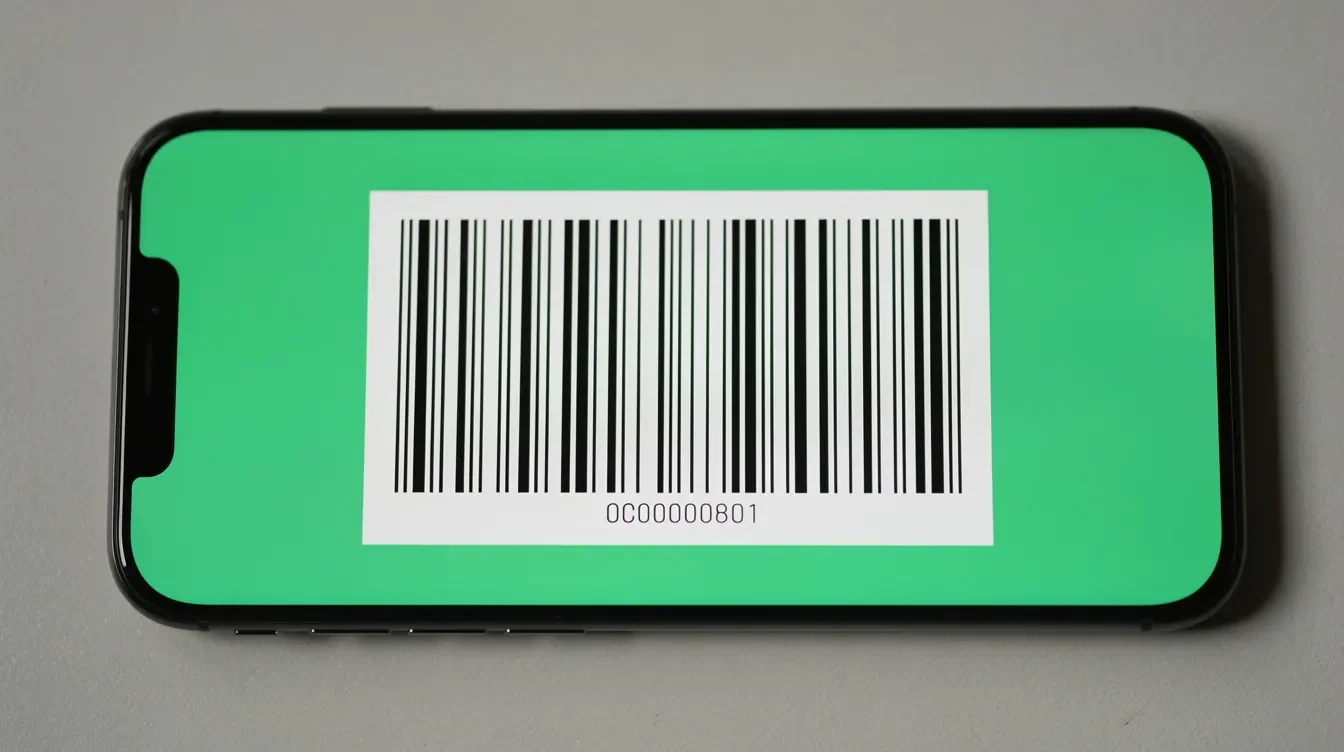
Some partners receive a physical Partner Card in a welcome kit, while others get a digital card number through internal tools like Partner Hub or MyPartnerInfo. Either format works the same way in the app. Barcodes for digital Partner Cards can be displayed in the starbucks app once they're added.
Here's how to add yours:
Open the starbucks app on your iPhone or android device.
Tap the profile icon or navigate to Starbucks Cards & payment (the label may vary slightly with app updates).
Tap Add card or Add Starbucks Card.
Enter the full 16-digit Partner Card number and the 8-digit security code (PIN). These are printed on physical cards or displayed in your digital card details.
Give the card a recognizable nickname-something like "Partner Card"-so you don't confuse it with personal Starbucks gift cards or other payment options.
Tap save to add the card.
Once it's saved, set the Partner Card as your default payment method. To do this, go to the Scan or Pay screen in the app, and select the Partner Card so it appears first when you present your barcode at the register. This prevents you from accidentally paying with a different card and missing your discount.
If you skip this step and pay with a regular Starbucks Card or a credit card, the 30% discount likely won't apply-even if your partner number is linked to your account.
Step 5: Use Your Partner Discount and Markout in the Starbucks App
With your partner number linked on the website and your Partner Card loaded in the app, you're ready to use your benefits. Here's what the experience looks like in practice.
At a Company-Operated Store
Open the starbucks app on your phone.
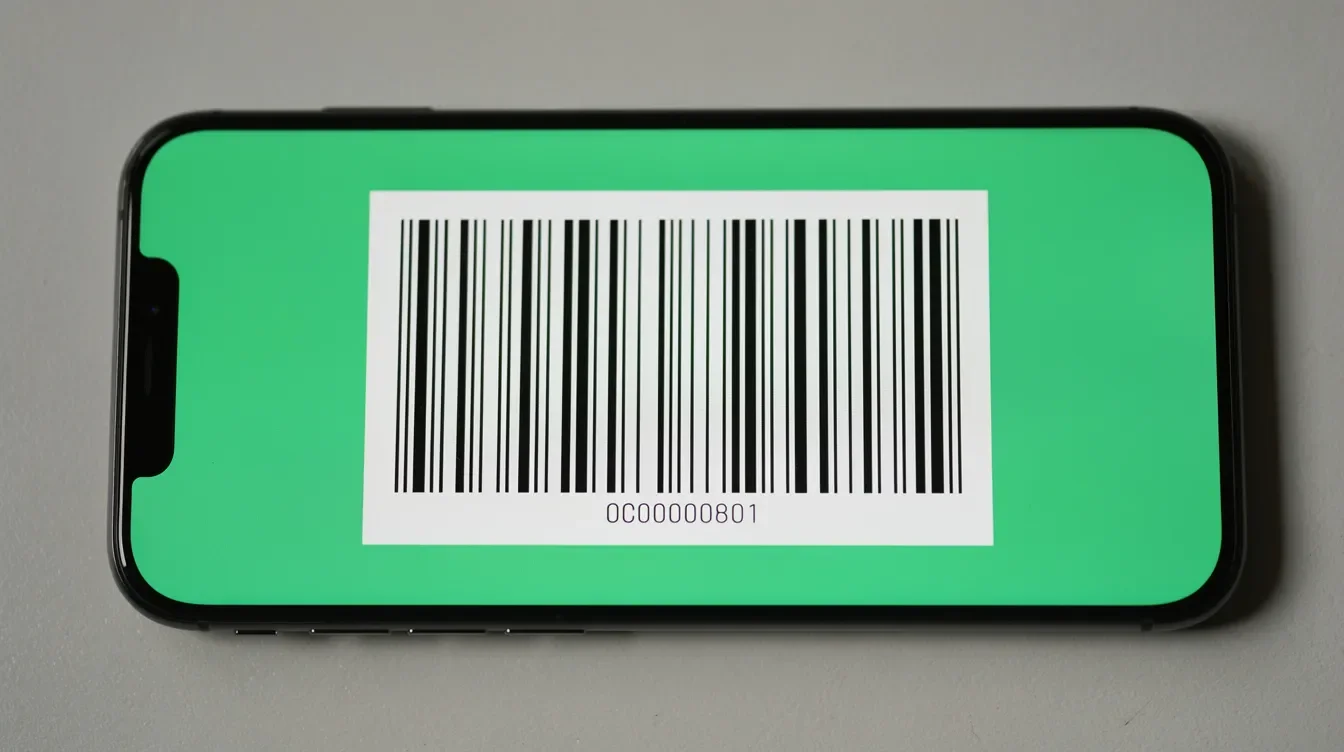
Tap Scan or Pay to bring up your Partner Card barcode.
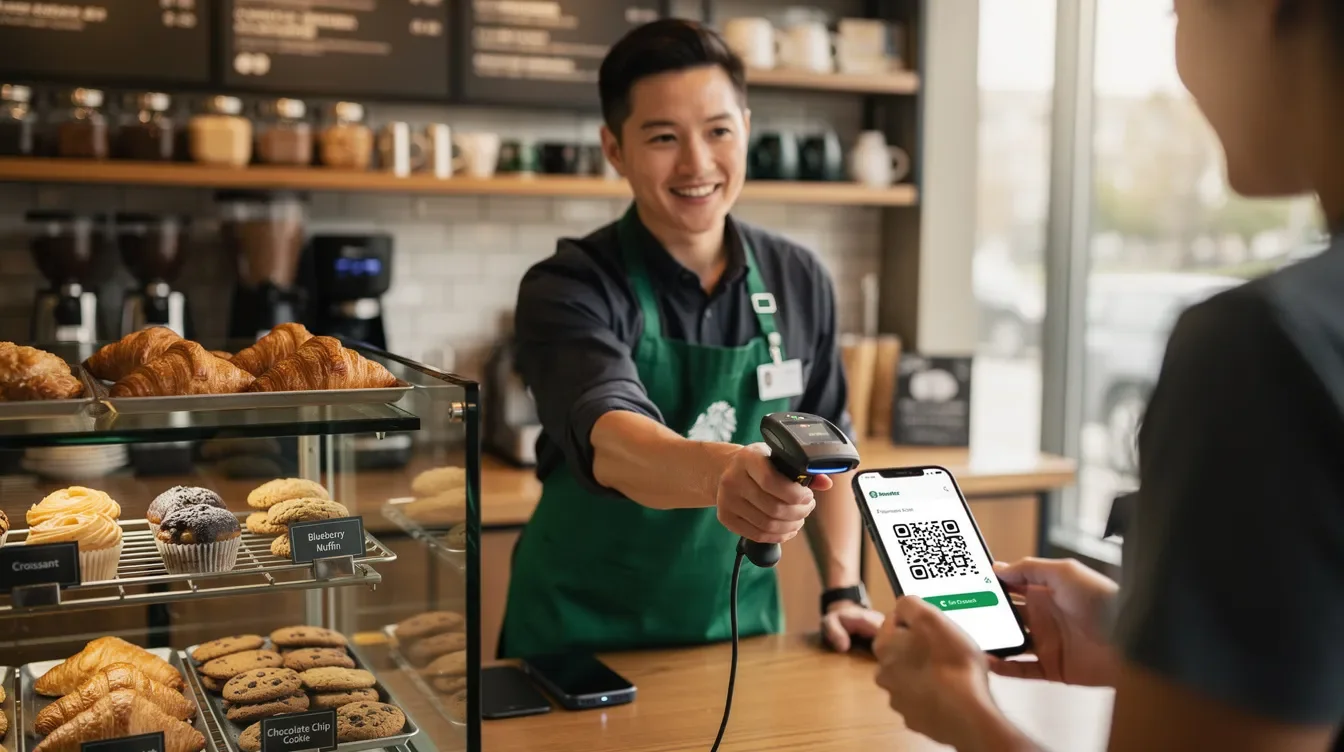
Present the barcode to the barista at the register.
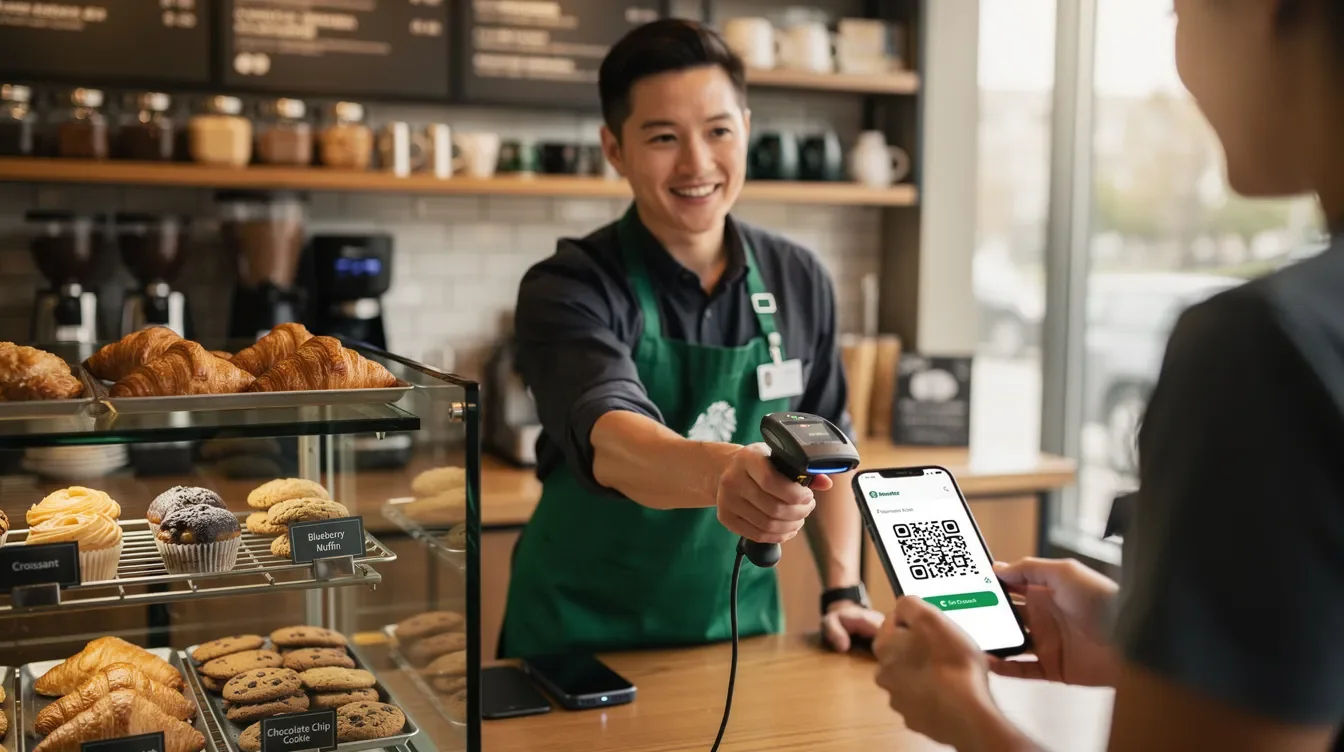
The register checks the partner number tied to your account and applies the partner discount automatically on eligible drinks, food items, and merchandise.
A 30% discount is automatically applied when using the digital Partner Card. You don't need to ask the barista to enter anything manually-though they might ask to confirm your identity or check your partner status for high-value transactions.
Digital Partner Cards can be scanned for in-store purchases to apply discounts, making the process quick whether you're on your break or stopping by on a day off.
For Mobile Orders
When you place a mobile order through the starbucks app and pay with your Partner Card, discounts from partner numbers are applied through the web profile for mobile orders. The order summary at checkout should show the 30% discount line before you submit.
Weekly Markout
Your weekly partner markout (one free coffee, tea, or equivalent retail item like whole bean or VIA per week) is tracked in Starbucks systems separately from standard Starbucks Rewards stars. It may display differently in the app than your usual rewards. If the markout doesn't appear on the app for mobile orders, you can always redeem it in person by scanning your Partner Card at a company-operated store.
After each purchase, check the transaction receipt in the app or your email to confirm that the partner discount lines appeared correctly. If something looks off, don't ignore it-it's easier to resolve issues early.
Step 6: Add Funds, Manage Payments, and Troubleshoot Common Issues
Getting your partner number linked is only half the battle. You also need to keep your Partner Card funded and know what to do when things go wrong. This section covers both.
Adding Money to Your Partner Card
To add funds from within the starbucks app:
Tap the profile icon or go to Starbucks Cards & payment.
Select your Partner Card.
Tap Add funds (or "Add money").
Choose a dollar amount and pick a payment method-debit card, credit card, Apple Pay, or whatever your app supports.
Confirm the transaction.
If you're a busy barista and don't want to worry about running out mid-week, consider setting up auto-reload with a reasonable limit (like $25 or $50). Just keep an eye on your bank or card statements so nothing surprises you.
Common Reasons the Partner Discount Fails
If you've followed every step and the discount still isn't showing, here's a checklist of what to investigate:
Problem | Likely Cause | Fix |
|---|---|---|
"Invalid partner number" error on website | Typo, missing leading zero, or wrong format | Re-enter carefully; check pay stub |
Name won't verify | Last name doesn't match payroll records | Use exact spelling from pay stub (hyphens, suffixes, etc.) |
Discount missing on receipt | Paying with a non-Partner card | Switch to Partner Card as default payment method |
Discount not applied at a specific store | Store is licensed, not company-operated | Ask the barista-licensed locations (airports, grocery stores, campuses) often don't honor partner discounts |
Partner status shows inactive | On leave, terminated, or role change pending in system | Contact your store manager or the Partner Contact Center |
App not reflecting linked number | Logged into wrong starbucks account | Sign out of the app, sign back in with the correct email |
When to Contact Support
Contact the partner contact center for linking issues that you can't resolve on your own. The phone number is 1‑888‑SBUX‑411 (7289‑411). Call if:
Your partner number cannot be added or won't verify on starbucks.com.
The partner discount still doesn't appear after completing all steps and making a test purchase.
Your partner status changed (for example, after transferring stores, switching roles, or returning from a leave of absence).
You can also speak with your store manager, who may be able to escalate tech issues through internal channels.
Don't stay annoyed if something breaks. Most linking problems have a simple fix-usually a name mismatch or wrong account. A five-minute call to the Partner Contact Center saves a lot of trouble.
FAQ
Do I have to add my partner number again if I reinstall the Starbucks app?
No. Your starbucks partner number is stored with your Starbucks Rewards account on Starbucks servers, not locally on your device. Deleting or reinstalling the app on your iPhone or android phone does not remove the linked partner number.
After reinstalling, simply sign back into the same starbucks account with the same email and password. If you accidentally create a new account or use a different email, the partner discount will not appear because that account isn't tied to a partner number. If you're ever in doubt, visit starbucks.com in a browser after any major account changes to confirm that your partner number is still listed and active under your personal info.
Can I use my Starbucks partner discount at every Starbucks location?
Not necessarily. The partner discount and Partner Card benefits generally apply at company-operated Starbucks stores. However, many licensed locations-the ones inside grocery stores, airports, college campuses, and similar spots-may not accept the partner discount. These stores are operated by a third party, and the discount policy is at their discretion.
Before you order at an unfamiliar location, ask the barista or store manager whether partner discounts are honored there. Eligibility can also vary by country and store type, so review the latest Starbucks partner resources or your internal handbook for the most accurate rules. This is especially relevant if you're traveling or visiting a Starbucks in a car while on a road trip and pulling into a rest stop location.
Why is my partner discount not showing even though my number is linked?
Several things can cause this. The most frequent culprits are:
Your partner status is in a probationary or inactive state in the system.
The last name you entered when linking doesn't match what's in payroll records (even a missing hyphen or suffix counts).
You're paying with a non-Partner Starbucks Card or a credit card instead of your Partner Card.
The store is a licensed location that doesn't participate in the partner discount program.
Try signing out of both starbucks.com and the starbucks app, then signing back in. Make a small test purchase-like a tall coffee-and pay with your Partner Card. Check the receipt for the discount line. If it still doesn't show, contact the partner contact center at 1‑888‑SBUX‑411 or speak with your store manager to request a review of your account.
Can I share my Starbucks partner number or Partner Card with friends or family?
No. Starbucks partner numbers and Partner Cards are intended for personal use by the starbucks partner only, per standard company policy. Sharing your partner discount with people who aren't eligible is a violation of Starbucks partner guidelines and can lead to loss of discount benefits, disciplinary action, or even termination.
If friends or family want to save money on Starbucks stuff, point them toward the regular Starbucks Rewards program instead. For complete rules about partner discount usage and privacy, review the most recent Starbucks Standards of Business Conduct or check with your store's HR documentation.
What happens to my partner discount if I leave Starbucks?
When a starbucks partner leaves the company-whether by resignation, end of contract, or termination-their partner status is deactivated. The partner number stops qualifying for the 30% discount, free weekly markout, and other partner-specific benefits.
Your Starbucks Rewards account itself remains active as a regular customer account. Any existing stars or standard rewards you've earned are still usable under the usual terms. You can still use the app to pay, earn rewards, and order drinks and food-you just won't receive the partner discount anymore.
How to Add Your Partner Number to the Starbucks App (Step‑by‑Step Guide)
Key Takeaways
Starbucks partners must first link their starbucks partner number to their Starbucks Rewards account on the Starbucks website before it will appear or function in the starbucks app. You cannot add it directly inside the app's settings.
On a computer, sign into starbucks.com → go to Account or Profile → find the partner info or "Add partner number" option → enter your 6–8 digit partner number and last name exactly as it appears on pay stubs → confirm.
On a phone, open starbucks.com in a browser, switch to desktop mode, and follow the same steps. Then add your Partner Card (16-digit number + security code) inside the starbucks app under payment methods.
Once the partner number is linked and you pay with a registered Partner Card in the app, the 30% partner discount automatically applies to eligible purchases at company-operated stores.
If your partner discount doesn't show up or your number won't verify, contact the partner contact center at 1‑888‑SBUX‑411 (7289‑411) for help.
This guide applies to the current Starbucks app experience in 2024–2026, but policies, URLs, and menu labels can change. Always confirm details on official Starbucks partner resources.
Introduction: Why Add Your Partner Number to the Starbucks App?
Your partner number is a unique 6–8 digit employee ID that Starbucks assigns to every partner. Linking it to your Starbucks Rewards account is how you unlock the partner discount (30% off eligible drinks, food items, and merchandise) and your weekly markout benefit when ordering through the app or paying at the register.
Here are the key terms you need to know before getting started:
Partner number (partner ID): Your short employee identifier, used across internal Starbucks systems like Partner Hub and payroll.
Partner Card: A physical or digital card with a 16-digit card number and PIN, used as a payment method in the app-similar to a Starbucks gift card.
Partner discount: The 30% savings on eligible items at company-operated Starbucks stores, plus your free weekly markout.
One thing that catches many partners off guard: you cannot add the partner number directly inside the mobile app. Adding a partner number to the starbucks app requires a two-step process. First, you link your partner number via the Starbucks website. Then, you add your Partner Card as a payment method in the app. Partner discounts are linked to the web account, not the app's settings directly.
The process of adding partner numbers must be completed using a web browser. This article focuses on U.S. stores (with notes for Canada) as of 2024–2026. Processes may differ slightly in other markets.
Step 1: Prepare Your Starbucks Partner Information
Before you log into anything, gather the details you'll need. Having everything in front of you will save time and prevent errors that could leave you annoyed later.
Here's what to collect:
Your partner number (6–8 digits). Your partner number is usually 6-8 digits long. You can find it on your pay stubs, onboarding paperwork, or the Partner Hub. You can also find your partner number in MyPartnerInfo, the internal Starbucks partner portal.
Your last name, exactly as it appears in Starbucks payroll records. Even a small spelling difference (hyphenated name, middle initial, suffix) will cause verification to fail. If you're unsure, check your pay stub-it's the source of truth.
An active Starbucks Rewards account. Make sure you have an existing account on starbucks.com using the same email you use in the starbucks app. If you don't have one yet, create an account at starbucks.com first and set a strong password.
Your Partner Card number and PIN. This is the 16-digit card number plus the 8-digit security code (PIN). Some partners receive a physical plastic card; others obtain a digital card through internal Starbucks partner tools. Either format works.
Write down or screenshot your partner number and card details somewhere accessible. You'll need them across multiple steps.
Step 2: Link Your Partner Number on Starbucks.com (Desktop)
Using a computer is the most reliable way to add your starbucks partner number. The desktop version of starbucks.com exposes account fields that the mobile site and the app sometimes hide. These instructions assume the current website layout.
Follow this numbered process:
Open your browser on a computer and go to starbucks.com.
In the top right corner of the page, click Sign in. Enter the email and password for your Starbucks Rewards account.
Once logged in, click your name or the profile icon (usually visible in the top right of the screen). This opens a dropdown or takes you to your account page.
Navigate to Account, Profile, or Personal Info-the exact label depends on the current design. Look for a section labeled "Partner" or "Add partner number." You may need to scroll down the page to find it.
Enter your 6–8 digit partner number and your last name exactly as it appears on your Starbucks pay stubs. Double-check both fields before submitting.
Click the green button or submit option to save. Wait for a success confirmation on screen. Some partners see a message like "Partner Discount Active" or a partner status indicator on their account dashboard.
After submitting, sign out of your starbucks account and sign back in. This forces the system to refresh your profile data. Confirm that the partner number now appears under your personal info and that your partner status shows as active.
If the page throws an error, the most common cause is a name mismatch. Go back and verify the spelling against your pay stub character by character.

Step 3: Add Your Partner Number Using a Phone or Tablet Browser
The starbucks app does not currently show an "Add partner number" option anywhere in its settings. If you don't have access to a computer, you can still complete the process-you just need to use a web browser on your phone or tablet instead.
Here's how to do it on an iPhone or android device:
Open Safari (iPhone) or Chrome (android) on your phone.
Navigate to starbucks.com and sign into the same Starbucks Rewards account you use in the starbucks app.
Request the desktop version of the website. In Safari, tap the aA icon in the address bar and select Request Desktop Website. In Chrome, tap the three-dot menu and choose Desktop site. This is a critical step-without switching to desktop mode, the partner section may not appear. You need to access the desktop version to add your partner number on mobile.
Once the full desktop layout loads on your phone screen, tap the profile icon in the top right. Navigate to Account or Personal Info, the same way you would on a computer.
Scroll until you find the "Partner" or "Add partner number" option. Tap it.
Enter your partner number and last name, then tap the submit or save button to confirm.
Take a screenshot of the confirmation page. Keep it saved on your phone in case you need proof that your starbucks partner number is linked-especially useful if the discount doesn't show right away.
After completing this, open the starbucks app on the same phone and make sure you're logged into the same account. The partner number you just linked on the website syncs to the app automatically through your starbucks account.
Step 4: Add Your Partner Card as a Payment Method in the Starbucks App
Linking your partner number to your web profile tells the Starbucks system who you are. But it doesn't pay for anything. To actually use the partner discount when ordering, you need to add your Partner Card as a payment method in the starbucks app-similar to adding a gift card.
Some partners receive a physical Partner Card in a welcome kit, while others get a digital card number through internal tools like Partner Hub or MyPartnerInfo. Either format works the same way in the app. Barcodes for digital Partner Cards can be displayed in the starbucks app once they're added.
Here's how to add yours:
Open the starbucks app on your iPhone or android device.
Tap the profile icon or navigate to Starbucks Cards & payment (the label may vary slightly with app updates).
Tap Add card or Add Starbucks Card.
Enter the full 16-digit Partner Card number and the 8-digit security code (PIN). These are printed on physical cards or displayed in your digital card details.
Give the card a recognizable nickname-something like "Partner Card"-so you don't confuse it with personal Starbucks gift cards or other payment options.
Tap save to add the card.
Once it's saved, set the Partner Card as your default payment method. To do this, go to the Scan or Pay screen in the app, and select the Partner Card so it appears first when you present your barcode at the register. This prevents you from accidentally paying with a different card and missing your discount.
If you skip this step and pay with a regular Starbucks Card or a credit card, the 30% discount likely won't apply-even if your partner number is linked to your account.
Step 5: Use Your Partner Discount and Markout in the Starbucks App
With your partner number linked on the website and your Partner Card loaded in the app, you're ready to use your benefits. Here's what the experience looks like in practice.
At a Company-Operated Store
Open the starbucks app on your phone.
Tap Scan or Pay to bring up your Partner Card barcode.
Present the barcode to the barista at the register.
The register checks the partner number tied to your account and applies the partner discount automatically on eligible drinks, food items, and merchandise.
A 30% discount is automatically applied when using the digital Partner Card. You don't need to ask the barista to enter anything manually-though they might ask to confirm your identity or check your partner status for high-value transactions.
Digital Partner Cards can be scanned for in-store purchases to apply discounts, making the process quick whether you're on your break or stopping by on a day off.
For Mobile Orders
When you place a mobile order through the starbucks app and pay with your Partner Card, discounts from partner numbers are applied through the web profile for mobile orders. The order summary at checkout should show the 30% discount line before you submit.
Weekly Markout
Your weekly partner markout (one free coffee, tea, or equivalent retail item like whole bean or VIA per week) is tracked in Starbucks systems separately from standard Starbucks Rewards stars. It may display differently in the app than your usual rewards. If the markout doesn't appear on the app for mobile orders, you can always redeem it in person by scanning your Partner Card at a company-operated store.
After each purchase, check the transaction receipt in the app or your email to confirm that the partner discount lines appeared correctly. If something looks off, don't ignore it-it's easier to resolve issues early.
Step 6: Add Funds, Manage Payments, and Troubleshoot Common Issues
Getting your partner number linked is only half the battle. You also need to keep your Partner Card funded and know what to do when things go wrong. This section covers both.
Adding Money to Your Partner Card
To add funds from within the starbucks app:
Tap the profile icon or go to Starbucks Cards & payment.
Select your Partner Card.
Tap Add funds (or "Add money").
Choose a dollar amount and pick a payment method-debit card, credit card, Apple Pay, or whatever your app supports.
Confirm the transaction.
If you're a busy barista and don't want to worry about running out mid-week, consider setting up auto-reload with a reasonable limit (like $25 or $50). Just keep an eye on your bank or card statements so nothing surprises you.
Common Reasons the Partner Discount Fails
If you've followed every step and the discount still isn't showing, here's a checklist of what to investigate:
Problem | Likely Cause | Fix |
|---|---|---|
"Invalid partner number" error on website | Typo, missing leading zero, or wrong format | Re-enter carefully; check pay stub |
Name won't verify | Last name doesn't match payroll records | Use exact spelling from pay stub (hyphens, suffixes, etc.) |
Discount missing on receipt | Paying with a non-Partner card | Switch to Partner Card as default payment method |
Discount not applied at a specific store | Store is licensed, not company-operated | Ask the barista-licensed locations (airports, grocery stores, campuses) often don't honor partner discounts |
Partner status shows inactive | On leave, terminated, or role change pending in system | Contact your store manager or the Partner Contact Center |
App not reflecting linked number | Logged into wrong starbucks account | Sign out of the app, sign back in with the correct email |
When to Contact Support
Contact the partner contact center for linking issues that you can't resolve on your own. The phone number is 1‑888‑SBUX‑411 (7289‑411). Call if:
Your partner number cannot be added or won't verify on starbucks.com.
The partner discount still doesn't appear after completing all steps and making a test purchase.
Your partner status changed (for example, after transferring stores, switching roles, or returning from a leave of absence).
You can also speak with your store manager, who may be able to escalate tech issues through internal channels.
Don't stay annoyed if something breaks. Most linking problems have a simple fix-usually a name mismatch or wrong account. A five-minute call to the Partner Contact Center saves a lot of trouble.
FAQ
Do I have to add my partner number again if I reinstall the Starbucks app?
No. Your starbucks partner number is stored with your Starbucks Rewards account on Starbucks servers, not locally on your device. Deleting or reinstalling the app on your iPhone or android phone does not remove the linked partner number.
After reinstalling, simply sign back into the same starbucks account with the same email and password. If you accidentally create a new account or use a different email, the partner discount will not appear because that account isn't tied to a partner number. If you're ever in doubt, visit starbucks.com in a browser after any major account changes to confirm that your partner number is still listed and active under your personal info.
Can I use my Starbucks partner discount at every Starbucks location?
Not necessarily. The partner discount and Partner Card benefits generally apply at company-operated Starbucks stores. However, many licensed locations-the ones inside grocery stores, airports, college campuses, and similar spots-may not accept the partner discount. These stores are operated by a third party, and the discount policy is at their discretion.
Before you order at an unfamiliar location, ask the barista or store manager whether partner discounts are honored there. Eligibility can also vary by country and store type, so review the latest Starbucks partner resources or your internal handbook for the most accurate rules. This is especially relevant if you're traveling or visiting a Starbucks in a car while on a road trip and pulling into a rest stop location.
Why is my partner discount not showing even though my number is linked?
Several things can cause this. The most frequent culprits are:
Your partner status is in a probationary or inactive state in the system.
The last name you entered when linking doesn't match what's in payroll records (even a missing hyphen or suffix counts).
You're paying with a non-Partner Starbucks Card or a credit card instead of your Partner Card.
The store is a licensed location that doesn't participate in the partner discount program.
Try signing out of both starbucks.com and the starbucks app, then signing back in. Make a small test purchase-like a tall coffee-and pay with your Partner Card. Check the receipt for the discount line. If it still doesn't show, contact the partner contact center at 1‑888‑SBUX‑411 or speak with your store manager to request a review of your account.
Can I share my Starbucks partner number or Partner Card with friends or family?
No. Starbucks partner numbers and Partner Cards are intended for personal use by the starbucks partner only, per standard company policy. Sharing your partner discount with people who aren't eligible is a violation of Starbucks partner guidelines and can lead to loss of discount benefits, disciplinary action, or even termination.
If friends or family want to save money on Starbucks stuff, point them toward the regular Starbucks Rewards program instead. For complete rules about partner discount usage and privacy, review the most recent Starbucks Standards of Business Conduct or check with your store's HR documentation.
What happens to my partner discount if I leave Starbucks?
When a starbucks partner leaves the company-whether by resignation, end of contract, or termination-their partner status is deactivated. The partner number stops qualifying for the 30% discount, free weekly markout, and other partner-specific benefits.
Your Starbucks Rewards account itself remains active as a regular customer account. Any existing stars or standard rewards you've earned are still usable under the usual terms. You can still use the app to pay, earn rewards, and order drinks and food-you just won't receive the partner discount anymore.
Check your account after your last official day to see when the partner discount disappears. Some partners report it turns off within a few days; others see a slight delay. Plan accordingly if you want to use any remaining benefits before your separation date.